Simple arithmetic in Minecraft: dividing the screen into parts
Relive the classic couch co-op experience with Minecraft! Back in the day, before ubiquitous voice chat, friends gathered around a single console for gaming fun. This guide shows you how to recreate that magic with Minecraft on your Xbox One or other console. Gather your friends, grab some snacks, and let's get started!
Important Considerations:
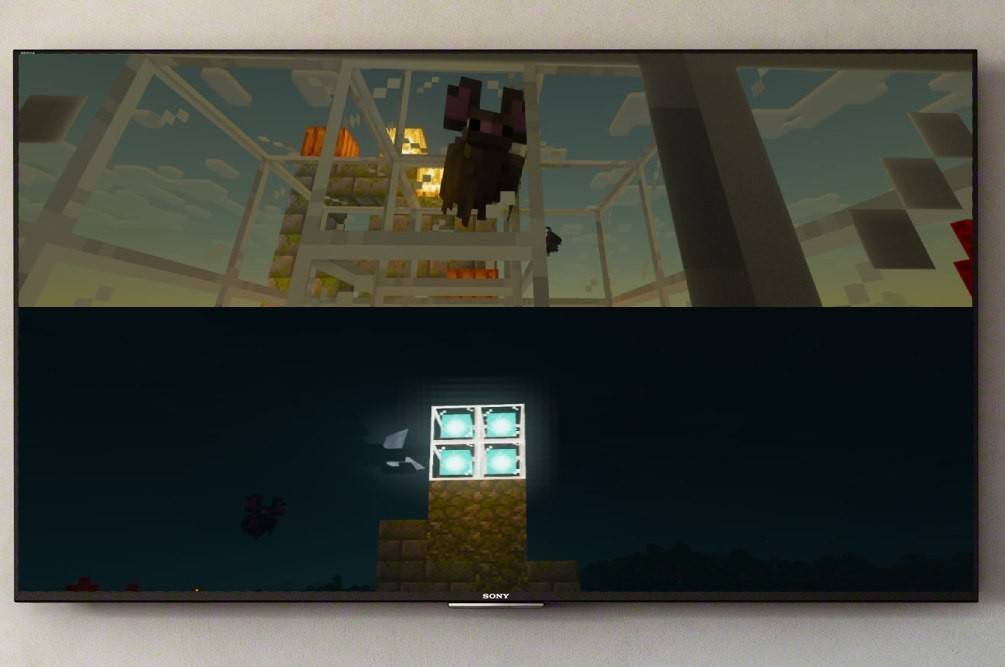 Image: ensigame.com
Minecraft splitscreen is a console-exclusive feature. PC players are out of luck, but Xbox, PlayStation, and Nintendo Switch owners are in for a treat! You'll need an HD (720p) compatible TV or monitor, and your console must also support this resolution. HDMI connection automatically adjusts resolution; VGA may require manual adjustment in your console's settings.
Local Splitscreen Gameplay:
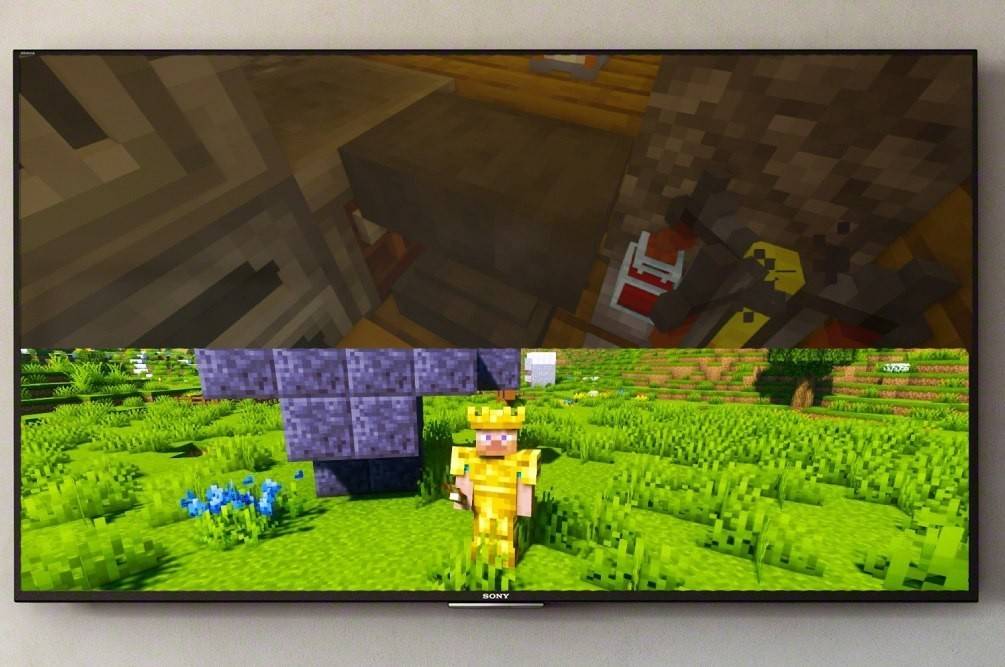 Image: ensigame.com
Minecraft offers both local and online splitscreen options. Local splitscreen lets up to four players share a single console – just make sure everyone gets a fair turn with the controller! While the exact button sequences vary slightly between consoles, the process is generally similar.
- Connect your console: Use an HDMI cable for optimal performance.
- Launch Minecraft: Create a new world or load an existing one. Crucially, disable the multiplayer function in the game settings.
- Configure your world: Choose difficulty, settings, and world parameters. Skip this if loading a pre-existing world.
- Start the game: Once loaded, activate additional players. This usually involves pressing a specific button (e.g., "Options" on PS, "Start" on Xbox) twice.
- Player login: Each player logs into their account to join the game. The screen will automatically split into sections (2-4 players).
- Game on! Enjoy your local multiplayer session.
 Image: ensigame.com
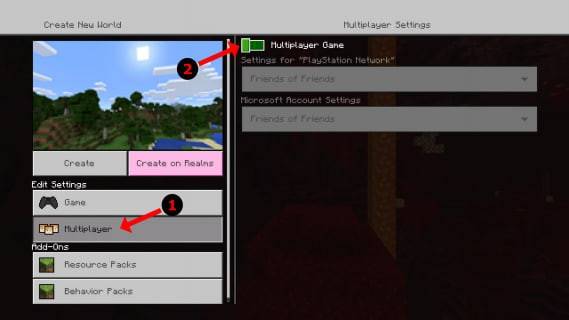 Image: alphr.com
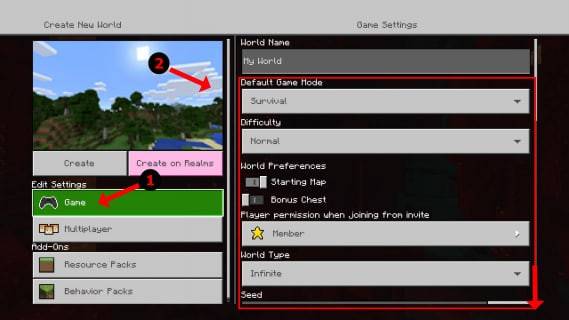 Image: alphr.com
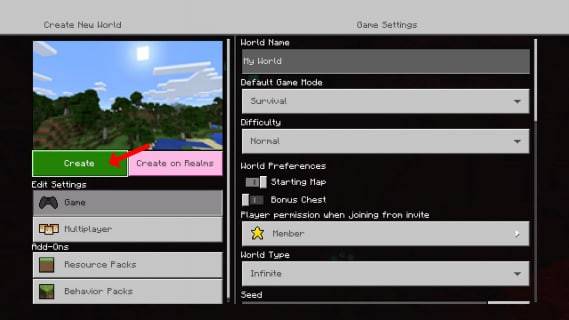 Image: alphr.com
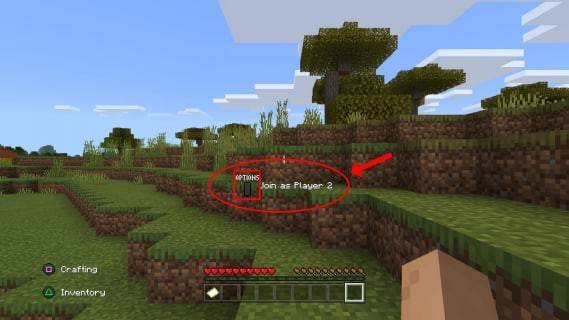 Image: alphr.com
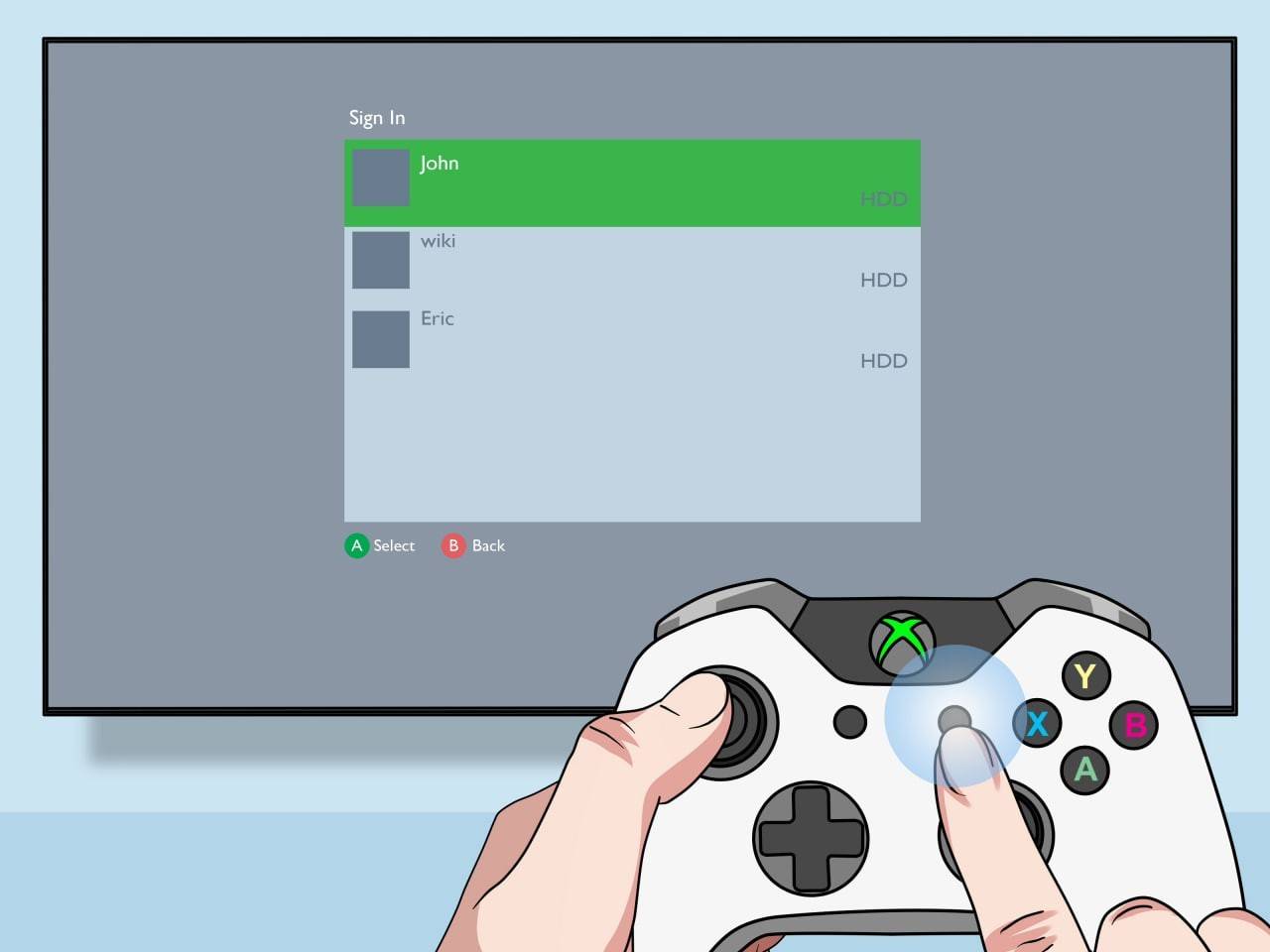 Image: pt.wikihow.com
Online Multiplayer with Local Splitscreen:
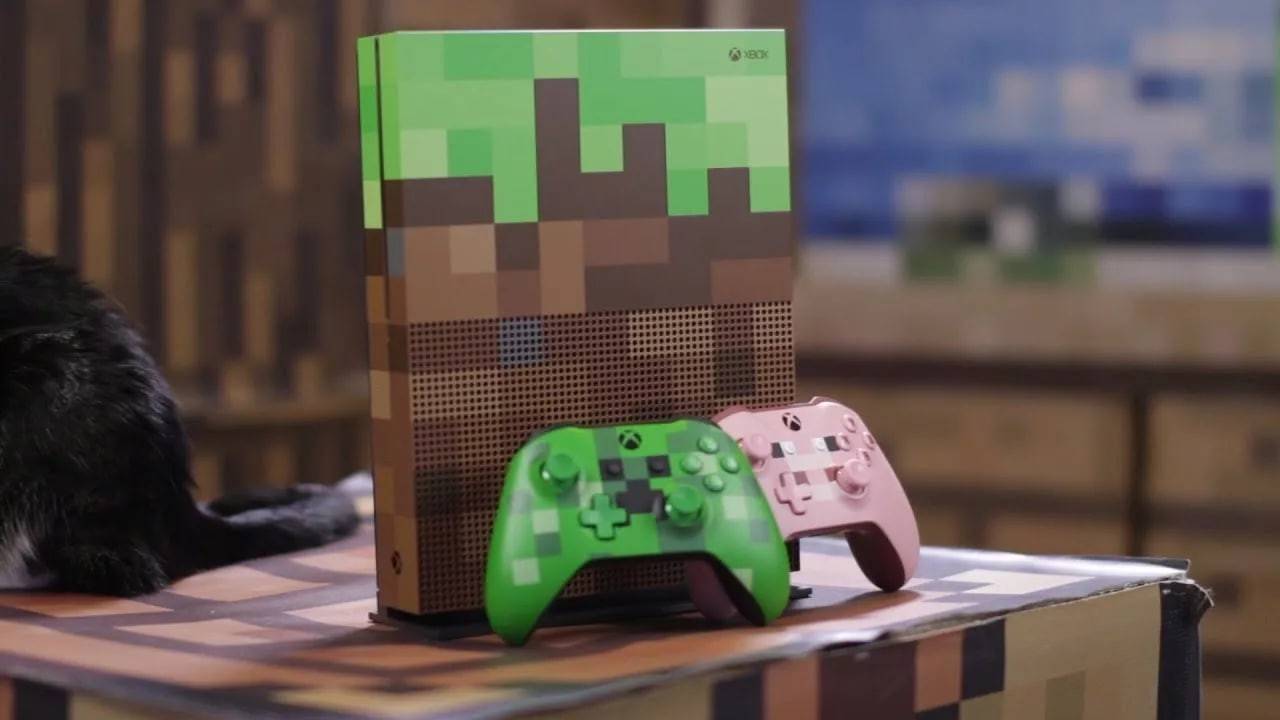 Image: youtube.com
While you can't directly split-screen with online players, local splitscreen players can join an online server. Follow the local splitscreen setup steps, but this time, enable the multiplayer function before starting the game. Send invites to your online friends, and you'll be playing together!
Minecraft remains a top cooperative game. Enjoy the fun with friends!
-
 Sniper Shooter : Pro ShootingPrepare for the most intense FPS sniper shooter experience with Ultimate FPS Sniper.Sniper Shooter: New Free Shooting GamesAre you a fan of sniper games or shooting games? Your search ends here. We present a highly intensive sniper shooting game, fea
 -
 Shadowgun Legends: Online FPSA multiplayer online RPG shooter featuring PvP, Co-Op, and an epic story campaign.THE FIRST PERSISTENT WORLD SHOOTER ON MOBILEl Join millions of players in the fight to save humanity from a mysterious alien invader.l Battle aliens in a thrilling, a
 -
 Real Gangster CrimeClimb to the top in a world of mafia wars, zombie arena survival, quests, and intense action!Immerse yourself in Real Gangster Crime, an action-packed adventure set in a sprawling mafia open world. This gaming app takes you on a thrilling journey thr
 -
 Nemesis Party: NTR, or NOTStep into the ultimate high school drama with Nemesis Party: NTR, or NOT! Join Glendale High's summer sendoff, where emotions run high and decisions shape destinies. Navigate a gripping storyline where winning over Emma Winters, your dream girl, is p
 -
 CrossoutConstruct your unstoppable war machine and dominate in vehicular combat, PvP & PvE battles!Crossout Mobile is a legendary MMO action game built for mobile. Begin your journey by choosing one of three chassis: caterpillar tracks, spider legs, or wheel
 -
 Pill KingAfter returning from the military, you’re disheartened to find your adoptive family constantly arguing under financial stress. Eager to help, you discover a revolutionary answer—Pill King. This transformative app puts you in the driver’s seat of you